Vector Image Tool
 The Vector Image Tool adds vector-based graphics to TheView. The advantage of a vector-based image over a pixel-based image is that a vector-based image can be proportionally resized without distortion. Supported image file formats include Scalable Vector Graphics (.svg), Windows Metafile (.wmf, .emf), and AutoCAD (.dxf, .dwg, .dwf). Not all .svg file formats are supported. Those that are not are files composed of patterns, interactivity, vertex, polybezier, spline, HPPolyBezier, masking, clipping paths, and animation. In addition, not all gradients are supported. Also note that if the vector contains a bitmap, the bitmap may be distorted if the object is resized.
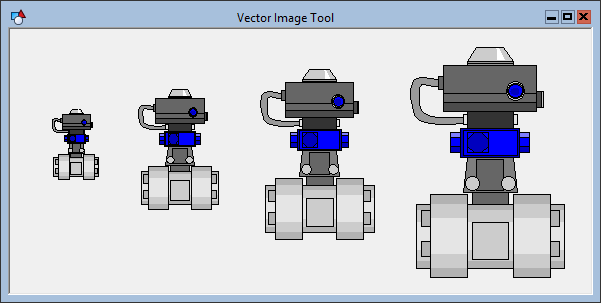
A Vector Image Tool object can be static or dynamic. If the object is to be dynamic, it must be associated with a CygNet point, and the image can change based on any one of the point’s alarm states or bit states. Each state can be represented by a different image.
To associate the object with a point use the point identifier properties to form a fully qualified CygNet tag string. The point identifier properties are [1:SiteService], [2:Point ID], [3:Long Point ID], [4:Facility ID], and [5:UDC]. If the object is on a templated screen, only use the [5:UDC] property.
The [Images] property defines the image or images displayed by the object.
The Layout property specifies the image’s relationship to its boundary. If set to Center, the image is set to its maximum proportional size for the boundary and is centered within it. If set to Stretch, the image is stretched to fit the boundary (proportions are not maintained) and can be resized by dragging the object’s boundary. The current proportions are maintained if you hold down the Shift key while resizing. To resize the image one pixel at a time regardless of TheView’s grid settings, hold down the Shift key and use the cursor keys.
If you want the image to be resized when the screen is resized in Run mode, its Layout property must be set to Size to Fit and FlexHorizontal and FlexVertical must be set to Expand or Proportional.
More:
 Vector Image Tool - Selecting an Image
Vector Image Tool - Properties, Events, and Methods

